

WooCommerce setup takes about an afternoon: install the free plugin on a WordPress site with HTTPS, run the setup wizard, then fix the settings the wizard never asks about. The plugin costs nothing to install. Your recurring costs come from hosting, paid extensions and payment fees, and on most stores the payment fees end up larger than everything else combined. That makes your choice of payment method the setup decision that matters most.
TL;DR:
- WooCommerce is free, but a working store usually costs $15–$60 a month before payment fees, which often outgrow everything else.
- The setup wizard covers store basics only. Permalinks, guest checkout, emails and stock holding still need manual attention.
- New installs use block-based Cart and Checkout pages, and some payment plugins only work with the classic shortcode checkout.
- Set up payments last, after shipping and tax, and test them with one real order before launch.
- Pick WooCommerce if you want ownership and can handle updates. Pick a hosted platform if you never want to touch maintenance.
Table of Contents
- Before You Install: Hosting, HTTPS and the 256 MB Rule
- WooCommerce Setup, Step by Step: Installing the Plugin and Running the Wizard
- The Settings the Wizard Skips, and the Defaults Worth Changing
- Pages, Blocks and Shortcodes: Why Your Checkout May Not Be the One the Tutorials Show
- Payments Last, Not First: Choosing How You Actually Get Paid
- How Much WooCommerce Costs per Month, Line by Line
- Is WooCommerce Better Than Shopify, and Is It Hard to Learn?
- Add Bitcoin Checkout to WooCommerce Without Handing Over Your Funds
- Frequently Asked Questions
- Sources
Before You Install: Hosting, HTTPS and the 256 MB Rule

WooCommerce is a plugin, not a platform, so everything it can do depends on the WordPress site underneath it. Get three things right before you install anything.
- A host that can run a store. Shared hosting built for brochure sites often struggles once a cart, checkout and order emails start hitting the database at the same time. WooCommerce's server recommendations list current PHP and database versions, plus a WordPress memory limit of at least 256 MB. Ask your host to confirm all three in writing.
- HTTPS on every page. A checkout without a valid TLS certificate will scare off customers and break some payment gateways. Most hosts issue free certificates through Let's Encrypt, so paying extra for SSL is rarely necessary.
- A fresh WordPress install, ideally. Adding a store to a site that already runs 30 plugins is the most common source of conflicts. If your existing site is cluttered, build the store on a staging copy first.
The minimum platform requirements on the WordPress.org requirements page are a floor, not a target. A store needs more headroom than a blog because every checkout writes orders, customer records and stock changes at once.
WooCommerce Setup, Step by Step: Installing the Plugin and Running the Wizard
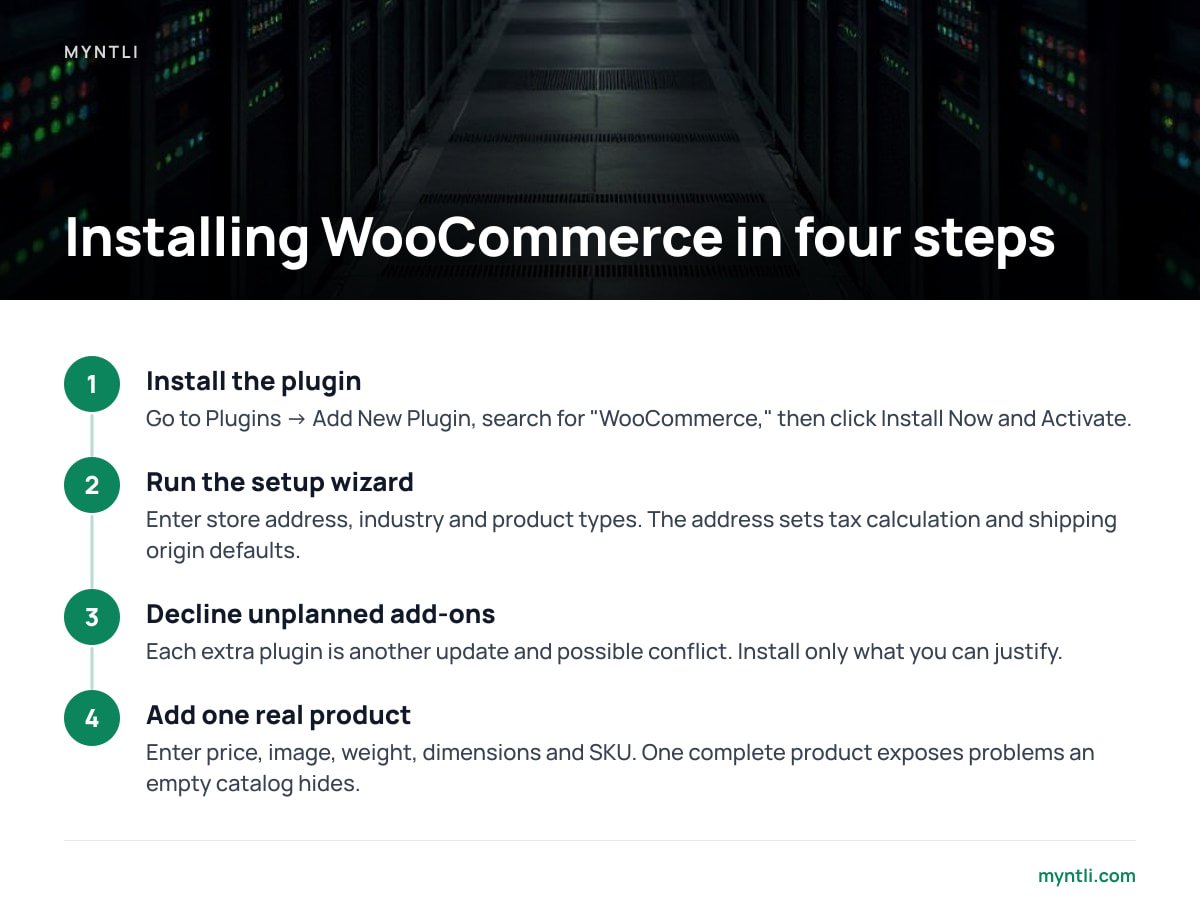
Installing the WooCommerce plugin in WordPress takes under five minutes.
- Install the plugin. In your WordPress dashboard, go to Plugins → Add New Plugin, search for "WooCommerce," then click Install Now and Activate. You can also download it from the official WordPress.org plugin listing and upload the zip file.
- Run the setup wizard. On activation, WooCommerce opens its onboarding flow. It asks for your store address, industry, the kinds of products you sell and whether you want optional free add-ons. Your store address matters more than it looks, because WooCommerce uses it as the default for tax calculation and shipping origin.
- Decline add-ons you didn't plan for. The wizard offers to install extra plugins. Each one is another thing to update and another possible conflict. Install only what you can name a reason for.
- Add one real product. Go to Products → Add New. Enter a price, an image, a weight and dimensions if you ship physical goods, and a SKU. A single fully filled-in product exposes problems that an empty catalog hides.
If you skipped the wizard or want to rerun it, the setup checklist stays on the WooCommerce home screen until you dismiss it.
The Settings the Wizard Skips, and the Defaults Worth Changing
The wizard gets you a store that technically works. These settings decide whether it works the way you expect. Most live under WooCommerce → Settings.
| Where | Setting | What to do |
|---|---|---|
| Settings → Permalinks (WordPress) | URL structure | Choose "Post name" before you publish products. Changing it later breaks indexed URLs. |
| General | Currency, selling locations | Restrict selling locations to countries you actually ship to. |
| Products → Inventory | Hold stock (minutes) | Keep it longer than your payment method's invoice or authorization window. |
| Shipping | Zones and methods | Build zones from most specific to least. WooCommerce matches the first zone that fits. |
| Accounts & Privacy | Guest checkout | Leave guest checkout on. Forced account creation costs sales. |
| Accounts & Privacy | Personal data retention | Set retention periods for inactive accounts and cancelled orders. Blank means keep forever. |
| Emails | Sender name and address | Use an address on your own domain, and set up SPF and DKIM so order emails don't land in spam. |
| Advanced | Page setup | Confirm Cart, Checkout and My Account point to the right pages. |
The hold stock setting deserves its own explanation, because it fails quietly.
60 minutes. That is WooCommerce's default "Hold stock" window. When it runs out, an unpaid pending order is cancelled and its stock is released.
Pro Tip: Hold stock only applies when stock management is enabled. It interacts with any payment method where the customer pays after the order is created, such as bank transfers or bitcoin invoices. If you shorten hold stock to, say, 10 minutes to stop people reserving stock, and your payment invoice stays open for 15, WooCommerce can cancel an order the customer is in the middle of paying. Set hold stock to at least your invoice expiry plus a margin for slow confirmations. Then place a test order and let it sit unpaid to watch what happens.
Pages, Blocks and Shortcodes: Why Your Checkout May Not Be the One the Tutorials Show
WooCommerce creates four core pages: Shop, Cart, Checkout and My Account. Since late 2023, new installs build the Cart and Checkout pages with blocks instead of the older shortcodes. That explains why your checkout looks different from the screenshots in many tutorials.
Blocks are faster to customize visually. The catch is compatibility. Some payment, shipping and checkout-field plugins still support only the classic checkout. If a payment method doesn't appear at checkout, check the plugin's listing for "Cart and Checkout block" support before you assume it's broken. If support isn't listed, edit the Checkout page, remove the Checkout block, and add the classic [woocommerce_checkout] shortcode in its place.
WooCommerce Shortcodes Worth Knowing
[woocommerce_cart]and[woocommerce_checkout]. These are the classic cart and checkout. Use them as your fallback whenever a plugin isn't block-compatible.[woocommerce_my_account]. This is the customer login and account page. It handles the customer side of WooCommerce login. You log in to manage the store through/wp-admin/.[products limit="4" columns="4"]. This displays a product grid anywhere on your site, and you can filter it by category, tag or SKU.[add_to_cart id="99"]. This puts a buy button for one product (here, product 99) inside a blog post or landing page.[woocommerce_order_tracking]. This adds a self-serve order lookup form, which cuts down "where's my order?" emails.
Payments Last, Not First: Choosing How You Actually Get Paid
Most tutorials put payments early in the process. Set them up last instead, after shipping zones and tax rules are finished. Payment plugins read your order totals, so testing them against a store whose shipping and tax are still wrong only tests the wrong numbers.
Under WooCommerce → Settings → Payments you can enable built-in offline methods, such as bank transfer, check and cash on delivery, and connect gateway plugins. Card gateways handle authorization, refunds and chargebacks for you, and in return they take a percentage of every sale. Roughly 3% per transaction is common for cards. On a store doing $10,000 a month, that is about $300 every month, which is more than most stores spend on hosting all year.
If any of your customers want to pay in bitcoin, there is a structurally different option. You can run a self-hosted payment server so customers pay straight into a wallet you control, with no percentage taken and no third party holding the funds. The BTCPay Server WooCommerce documentation covers the plugin side. How BTCPay Server actually works explains the node behind it. For the wider picture, see how to accept bitcoin in your online store without a middleman.
Whatever you choose, run one real transaction from start to finish before launch. Place the order, pay it, confirm the status moves to Processing, check that both the customer and admin emails arrive, then refund it.
Cards change your compliance picture too. If card data passes through your site, the PCI Security Standards Council's PCI DSS rules apply to you. Gateways that use hosted or tokenized fields shrink that scope considerably, which is a strong reason to prefer them.
How Much WooCommerce Costs per Month, Line by Line
The plugin is free and open source. The store is not. Here is what a small store typically pays. These are market ranges, so check current pricing for each item.
| Cost | Typical range | Notes |
|---|---|---|
| WooCommerce plugin | $0 | Free and open source |
| Domain | $10–$20 per year | Under $2 a month |
| Hosting | $10–$50 per month | Managed WordPress hosting sits at the upper end and is usually worth it for a store |
| SSL certificate | $0 | Free through Let's Encrypt on most hosts |
| Theme | $0–$100 one-off | Free block themes work for most stores |
| Paid extensions | Roughly $50–$300 per year each | Extensions on WooCommerce's marketplace are sold as annual subscriptions |
| Payment fees | Usually a percentage of each sale | Often the largest line once you have steady sales |
A lean store with no paid extensions runs about $15–$60 a month before payment fees. Each annual extension renewal adds to that, so total yours up before you buy, not when the renewal invoice arrives. Payment fees are the one line that grows with your sales. Our breakdown of percentage fees on bitcoin payments shows how quickly they compound.
Is WooCommerce Better Than Shopify, and Is It Hard to Learn?

Is WooCommerce better than Shopify? It depends on what you want to own. WooCommerce gives you the code, the database and the customer data on a server you control, and lets you use any payment method you want. Shopify gives you hosting, security and updates in exchange for a monthly subscription. On its standard plans, Shopify also adds a transaction fee when you use a third-party payment provider instead of its own. If you want control and can tolerate maintenance, pick WooCommerce. If you never want to think about plugin updates, pick Shopify. Neither choice locks you out of bitcoin: our Shopify integration guide covers that side.
Can a beginner use WooCommerce? Yes. A beginner can launch a simple store with a few dozen products in a day, because the WordPress dashboard and the setup wizard handle most of it. Beginners usually get stuck on shipping zones, tax rules and plugin conflicts, not on adding products.
Is WooCommerce hard to learn? It is easy to start and harder to run well. The ongoing work is maintenance. WooCommerce, WordPress, your theme and every extension update on their own schedules, and occasionally one update breaks another. Keep a staging site, take daily backups, and update on a weekday morning, never on a Friday night. If you do those three things, WooCommerce is not hard. It is just yours to look after.
One more task belongs on the list: uninstalling. Deactivating and deleting WooCommerce leaves your products and orders in the database by default. To remove everything, add define( 'WC_REMOVE_ALL_DATA', true ); to wp-config.php before you delete the plugin. Only do this after you've exported anything you might need.
Add Bitcoin Checkout to WooCommerce Without Handing Over Your Funds

You've just set up a store you own. Your payments can work the same way. Myntli runs a BTCPay Server for you and connects it to your WooCommerce checkout, so bitcoin payments land directly in your own wallet. There is no percentage cut, no custody of your funds and no KYC on your store. The hosted option costs a flat $29 a month and includes monitoring, updates and node sync maintenance. If you'd rather own the hardware, we install a full node on your own server for $449. If you don't have a self-custody wallet yet, we'll help you set one up.
The honest caveat: we handle the payment node, not your WordPress hosting, so plugin updates and backups on the store side are still your job. A flat fee also only beats a percentage once you have real volume. At 3%, the break-even point is about $1,000 a month in bitcoin sales. Run your own numbers before you switch.
Frequently Asked Questions
How do I install the WooCommerce plugin in WordPress?
In your WordPress dashboard, go to Plugins → Add New Plugin, search for "WooCommerce," then click Install Now and Activate. The setup wizard opens automatically and asks for your store address, industry and product types. The whole process takes a few minutes on a properly configured host.
Can I skip the WooCommerce setup wizard?
Yes. You can skip the wizard and configure everything under WooCommerce → Settings instead. The setup checklist stays on the WooCommerce home screen until you dismiss it, so you can come back to it later.
Where is the WooCommerce login page?
Customers log in through the My Account page, which WooCommerce creates during setup and which uses the [woocommerce_my_account] shortcode or block. Store owners and staff log in through the standard WordPress admin at /wp-admin/.
How much does WooCommerce cost per month?
The plugin is free. A small store typically spends $15–$60 a month on hosting and a domain, plus annual fees for any paid extensions. Payment processing fees are charged separately and often become the largest cost once sales are steady.
Why isn't my payment method showing at checkout?
The most common cause is a payment plugin that doesn't support the block-based Checkout page that newer WooCommerce installs use by default. Check the plugin's compatibility notes. If block support isn't listed, replace the Checkout block with the classic [woocommerce_checkout] shortcode.
Does deleting WooCommerce remove my products and orders?
Not by default. Your store data stays in the database after you delete the plugin. To remove it completely, add define( 'WC_REMOVE_ALL_DATA', true ); to wp-config.php before deleting, after you've exported anything you want to keep.
Sources
- WooCommerce Server Recommendations | WooCommerce
- WooCommerce plugin listing | WordPress.org
- WordPress Requirements | WordPress.org
- Let's Encrypt | Internet Security Research Group
- BTCPay Server WooCommerce integration | BTCPay Server Docs
- PCI Security Standards Council | PCI Security Standards Council